


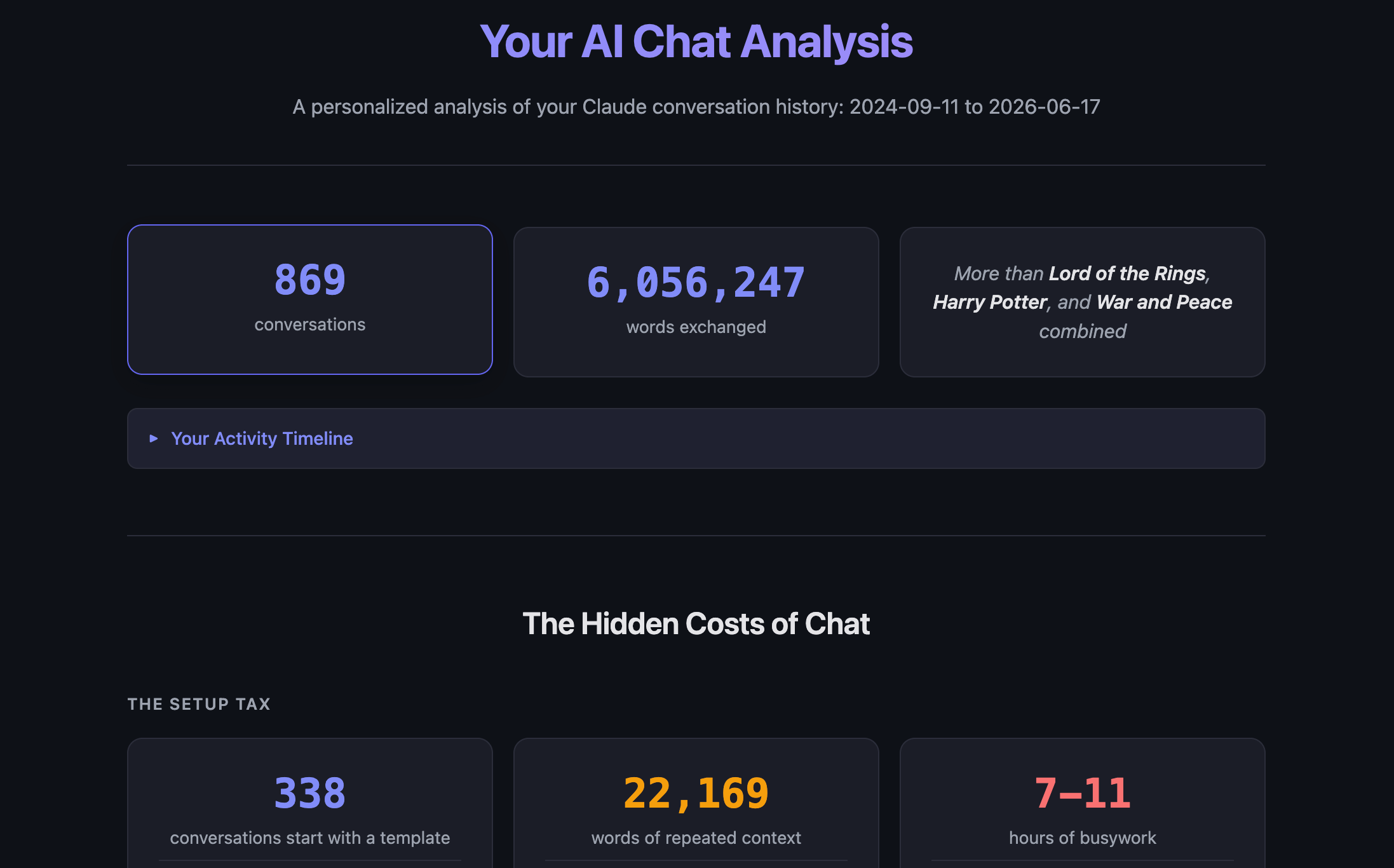
You’ve had dozens, maybe hundreds, of conversations with Claude. Each one left a trail: how you prompt, what you build, where you hit walls, what workarounds you’ve invented, where your best ideas are sitting in threads you’ll never go back to.
Taken together, that trail is a remarkably detailed portrait of how you actually use AI, and it almost certainly looks different from how you think you use AI.
Today, we’d like to share the AI Mirror skill with you: a custom skill we’ve created that takes your raw Claude.ai chat export into a single, self-contained HTML dashboard that mirrors how you’ve really been using AI back to you.
It reads your entire conversation history, measures where you’re losing time and where your best thinking is trapped in old threads, and then translates all of it into a clear picture of what Claude Code could change for you.
The dashboard is built to be explored: headline numbers sit on top, and every claim opens into the full underlying analysis with a click. It reports on six areas:
Big Picture Stats. How much work have you actually done inside Claude? Your total conversations, total words, and a plain-language read on the scale of what you’ve already built. Most people are surprised by how high these numbers actually are.
The Chat Tax. How much of your time is going to busywork you shouldn’t have to do? The report counts how many conversations open with copy-pasted prompts, how many words you’ve retyped from scratch, and estimates the hours you’ve lost to repetitive setup.
The Cost of Fragmentation. How much of your best thinking is stuck in conversations you’ll never reopen? The report maps how scattered your work is across separate chats on the same topic, identifies the insights and original IP trapped in threads you haven’t revisited, and shows how often you’ve had to search your own history for something you already wrote.
Your AI Sophistication Levels. Where do you actually fall on the expertise scale? Two seven-level frameworks (one for Chat, one for Claude Code) graded from your real behavior, each with a “your next move” prompt. It also inventories the workarounds you’ve invented to cope with chat’s limits, so you can see just how much engineering you’ve been doing without a proper toolkit.
Opportunities. What would change if you stopped working around chat’s constraints? This is the payoff section: an executive summary of what’s possible, a prioritized Claude Code roadmap of skills and pipelines worth building, and a personalized recommendation for the single highest-impact project you could start with.
The Bigger Picture. What does all of this say about you? The closing section steps back from the numbers to show what your data reveals about your relationship with AI tools, and where migrating to an agentic workspace could help you work more efficiently, with better results, at greater scale.
Skills and a Workflow Based On Your Previous Work in Chat. The analysis identifies the top three skills and #1 workflow that would help you do work you already more easily, more quickly, or at a higher level. Then the AI Mirror for Claude builds those skills and workflow for you.
This skill is designed to be used in Claude Code. (It will not work in the claude.ai web chat interface.)
The rest of this article contains instructions for using the AI Mirror for Claude skill in the Claude Desktop app. (If you haven’t installed Claude Desktop on your computer yet, you’ll find PDF tutorials in Appendix A, at the end of this post.)
Here’s an overview of the AI Mirror for Claude process:
Export your Claude Chat history.
Create a folder called claude-export. Copy the exported data into this folder.
Download the AI Mirror for Claude skill.
Open Claude Code (in the Desktop app) and select the claude-export folder.
Drag the zipped skill file into the Claude Code Desktop prompt field, then type: “Run this skill on the data file in this folder.”
Claude Code will run the analysis and open the report dashboard in a new window of your default web browser.
Keep reading for detailed tutorials on each step…
Export Your Claude Chat History
We’ve created this Chat Exporter Tool to make it easy to get your complete Claude Chat history easy. Click on the Chat Exporter icon:

The Chat Exporter Tool appears:

Click on the Go to Claude Export Page button. A popup box will appear.
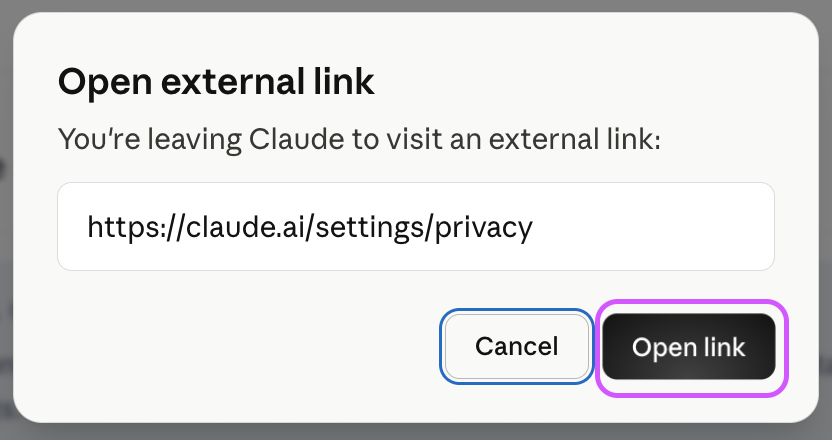
Click on the Open link button.
You’ll be taken to the exact page in your Claude account settings where you can request the data export:
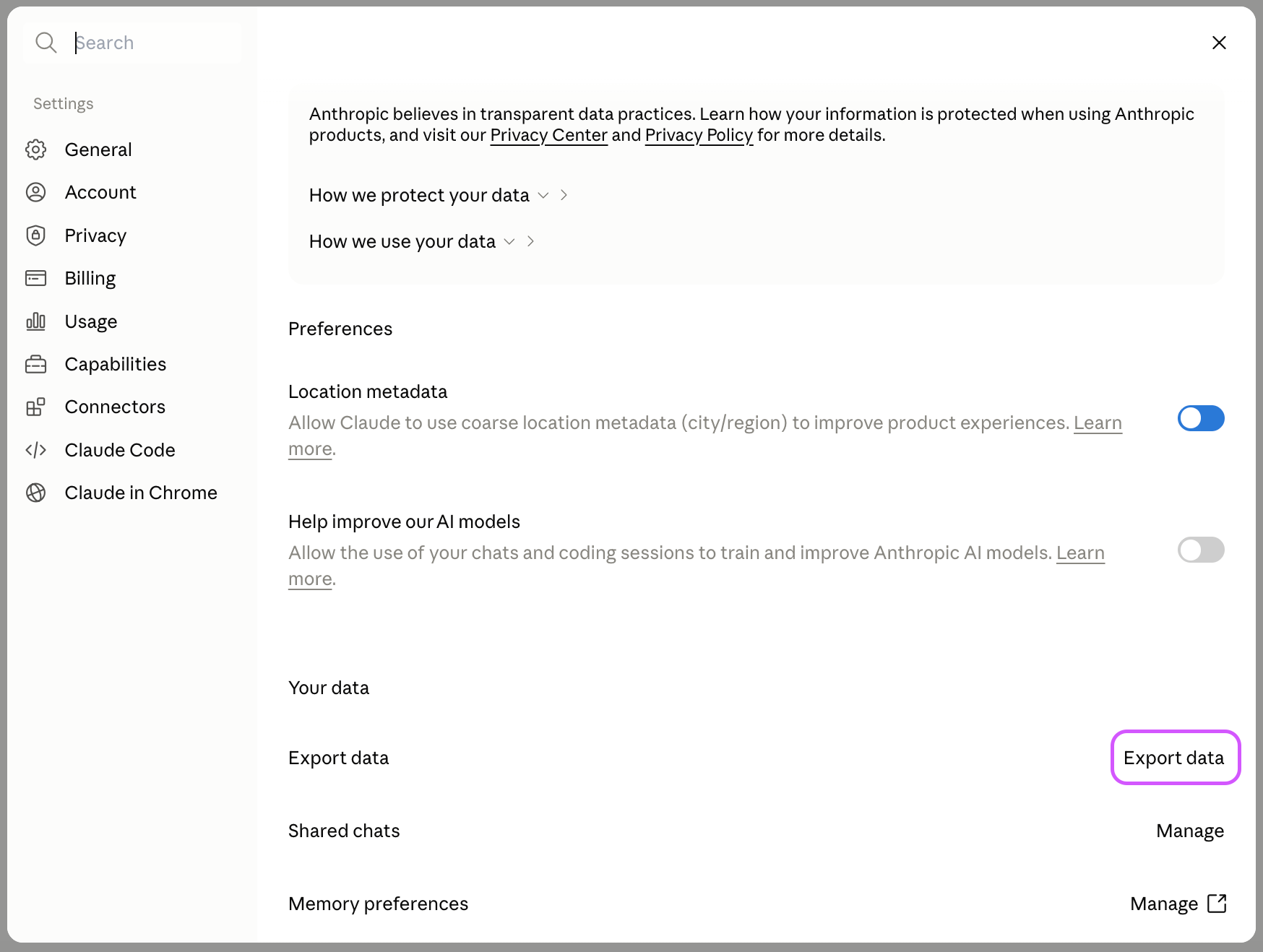
Click on Export data. The Export data popup window will appear:
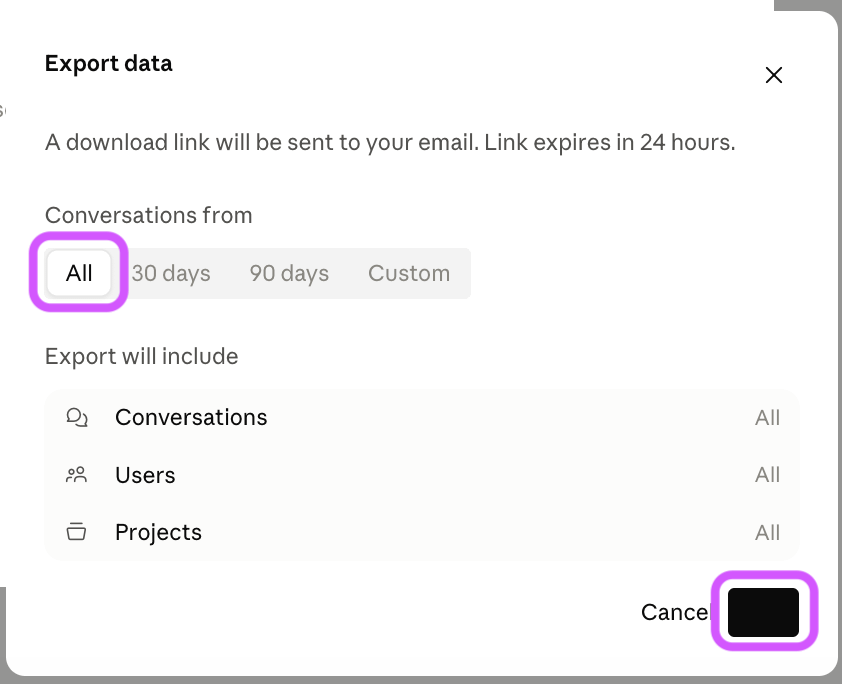
Make sure All is selected, then click on the Export button. In the upper right corner of your screen, an Export started notification appears.
Within 15 minutes, you’ll receive an email from Anthropic containing the download link for your data:
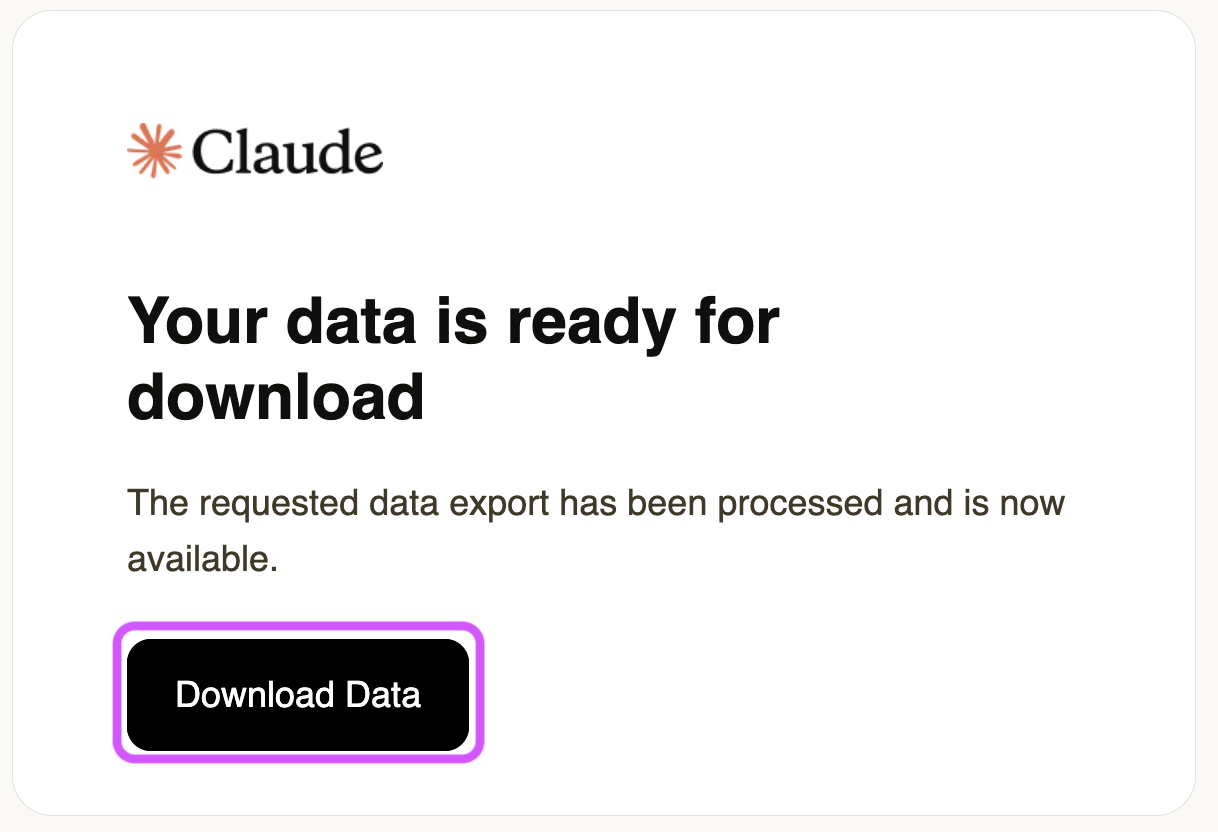
Click on the Download Data button in the email, and your data file will begin downloading as a zipped file.
Create a new folder on your computer called claude-export and copy the data file there. Do not unzip the data file.
Download the AI Mirror for Claude Skill
Click this button to download the AI Mirror for Claude skill:
You’ll be taken to the skill’s zipped file:
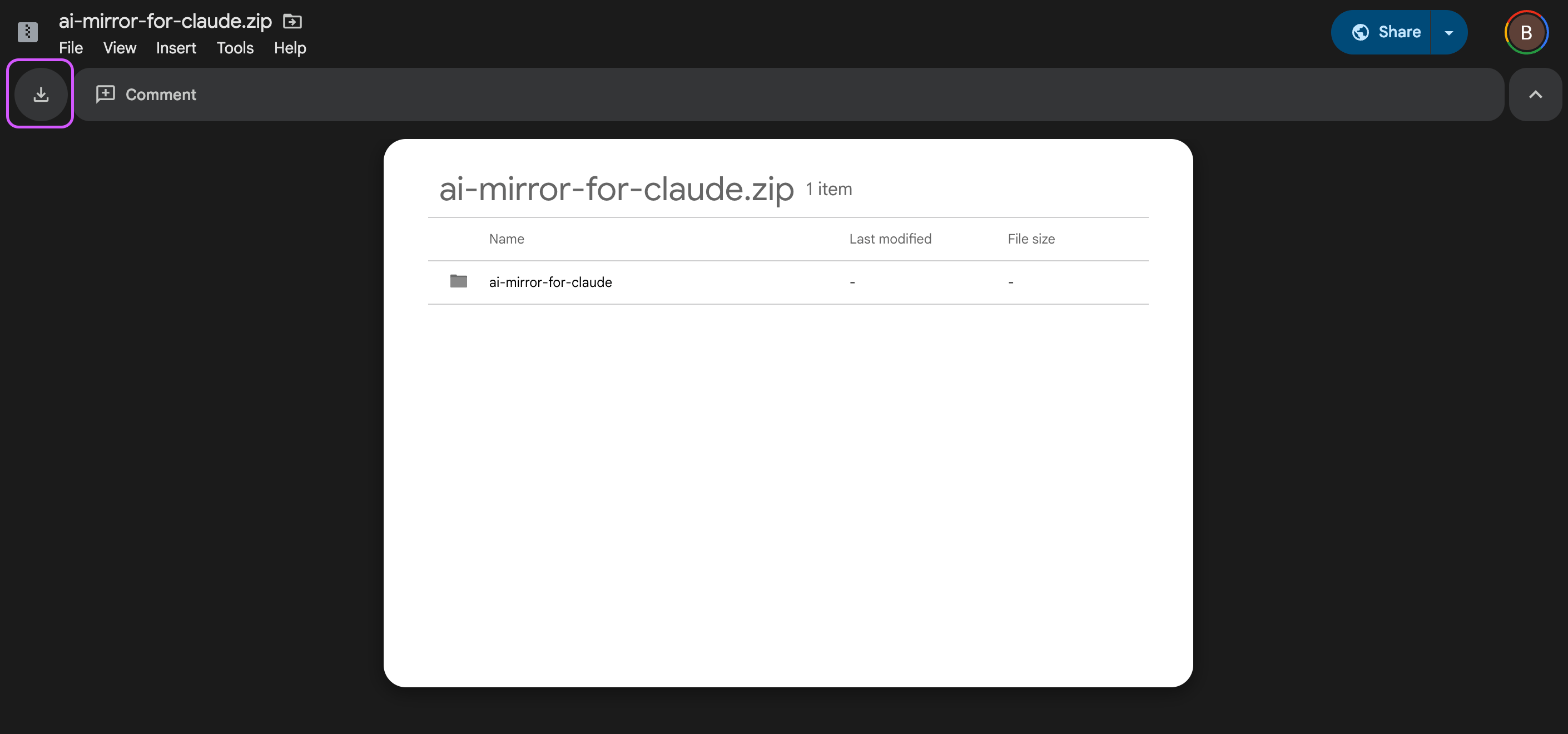
Click on the Download icon in the upper left corner of the screen. The file should begin downloading.
Open Claude Code (in the Desktop app) and Select the claude-export Folder
Once the download is finished, open the Claude Desktop app:
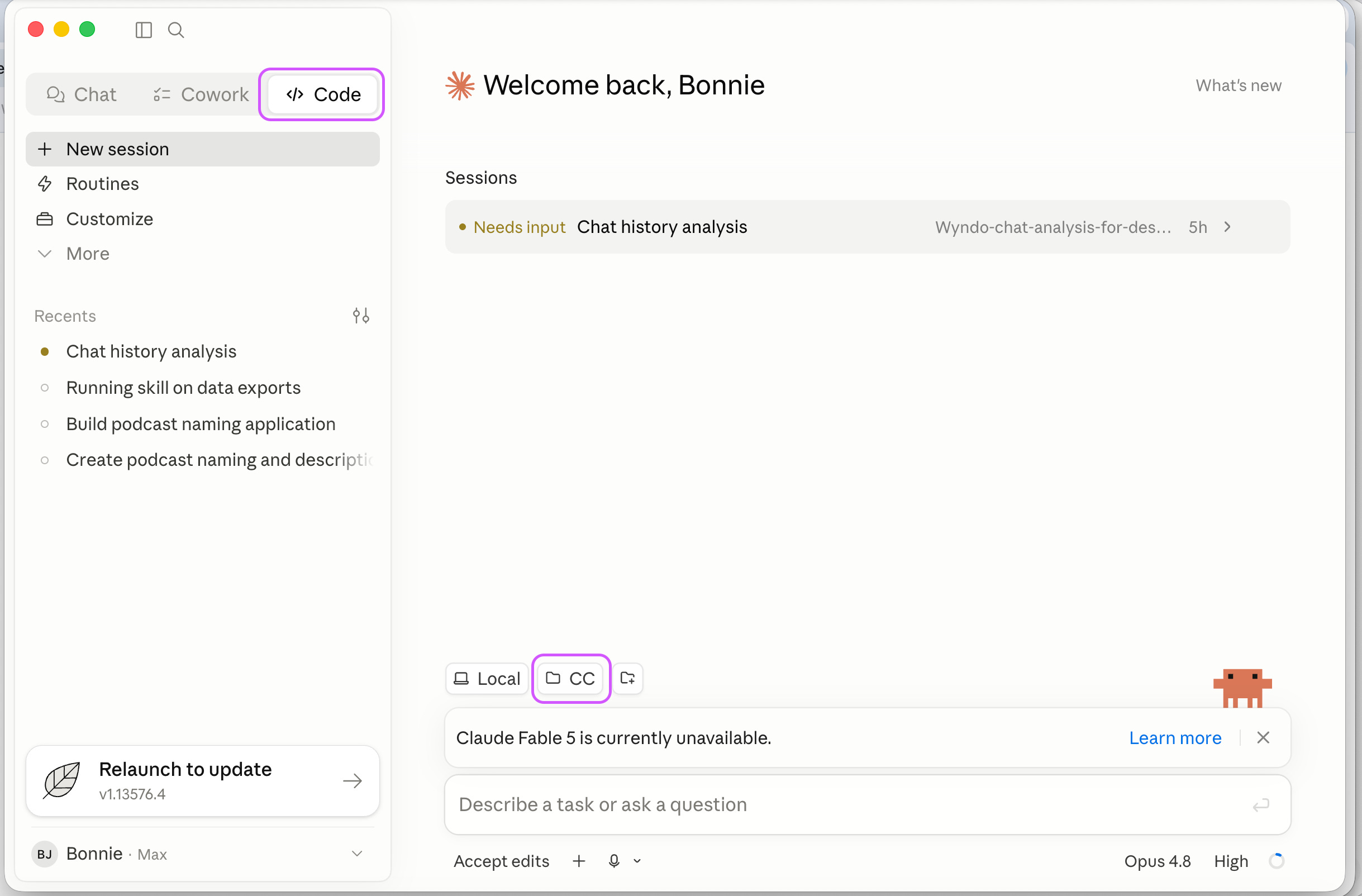
In the upper left corner, click on the </> Code tab.
In the lower half of the screen, click on the button to the right of Local to change which folder you’re working in.
A popup menu appears.
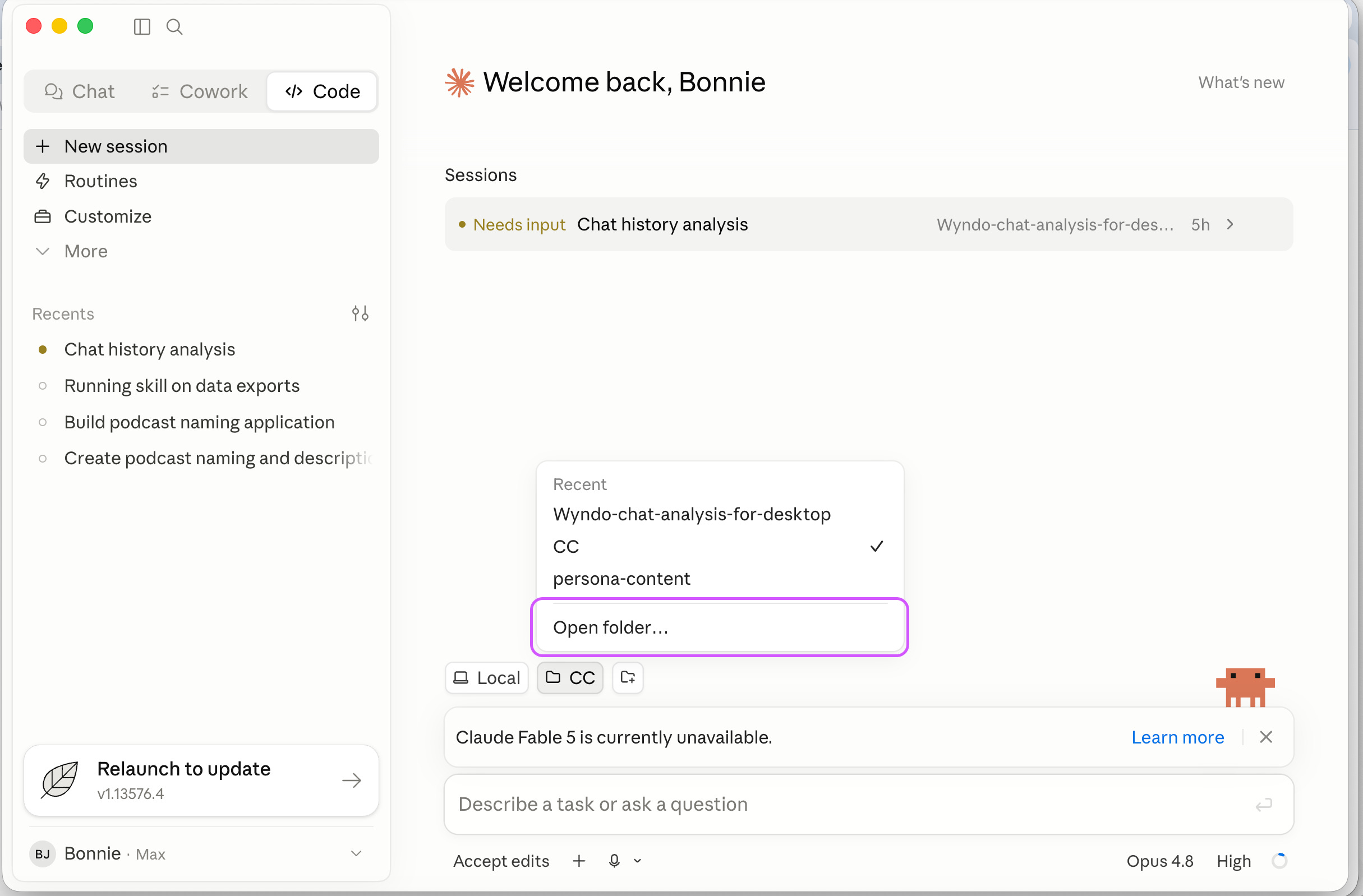
Click on Open folder…
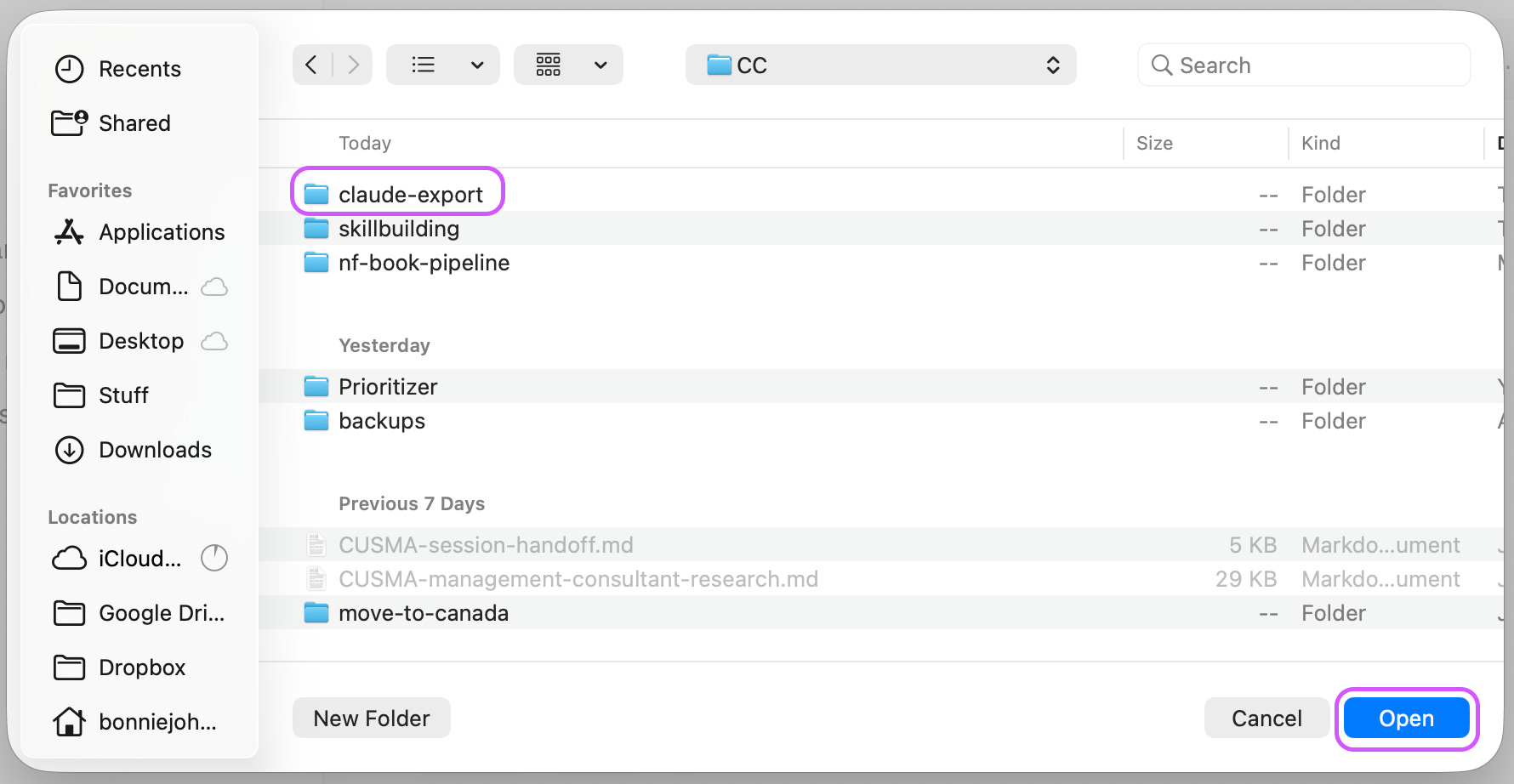
Navigate to the claude-export folder you created earlier and select it. Then click the Open button.
The claude-export folder is now your current folder.
Drag the Skill File Into the Desktop App and Run It
Open a Finder window and open the folder that you downloaded the ai-mirror-for-claude.zip file to.
Then drag the .zip file into the Claude Desktop prompt field.
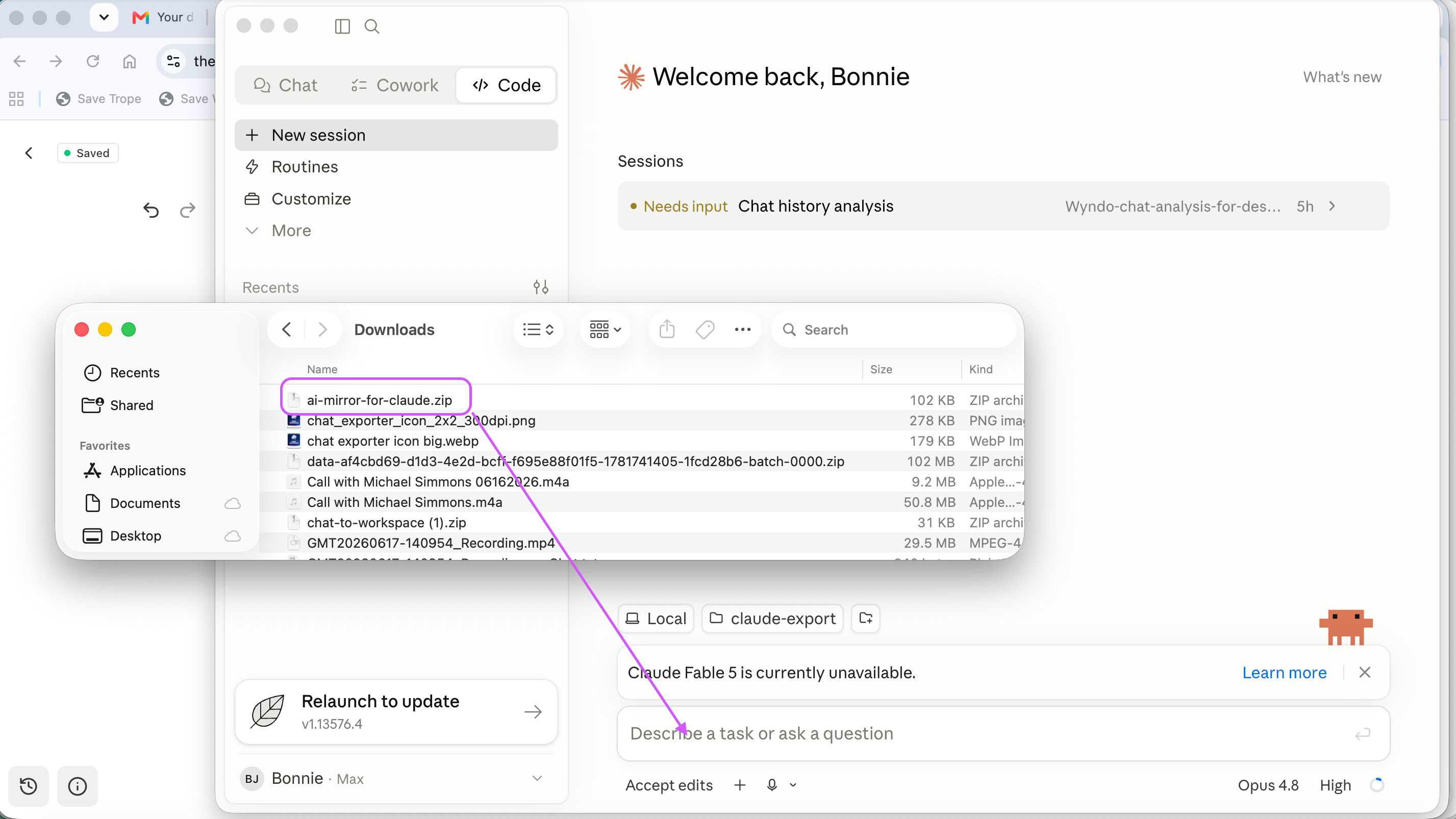
The .zip file appears in the prompt field as a gray box labeled “zip.”
Type into the prompt field: “Run this skill on the data file in this folder.”
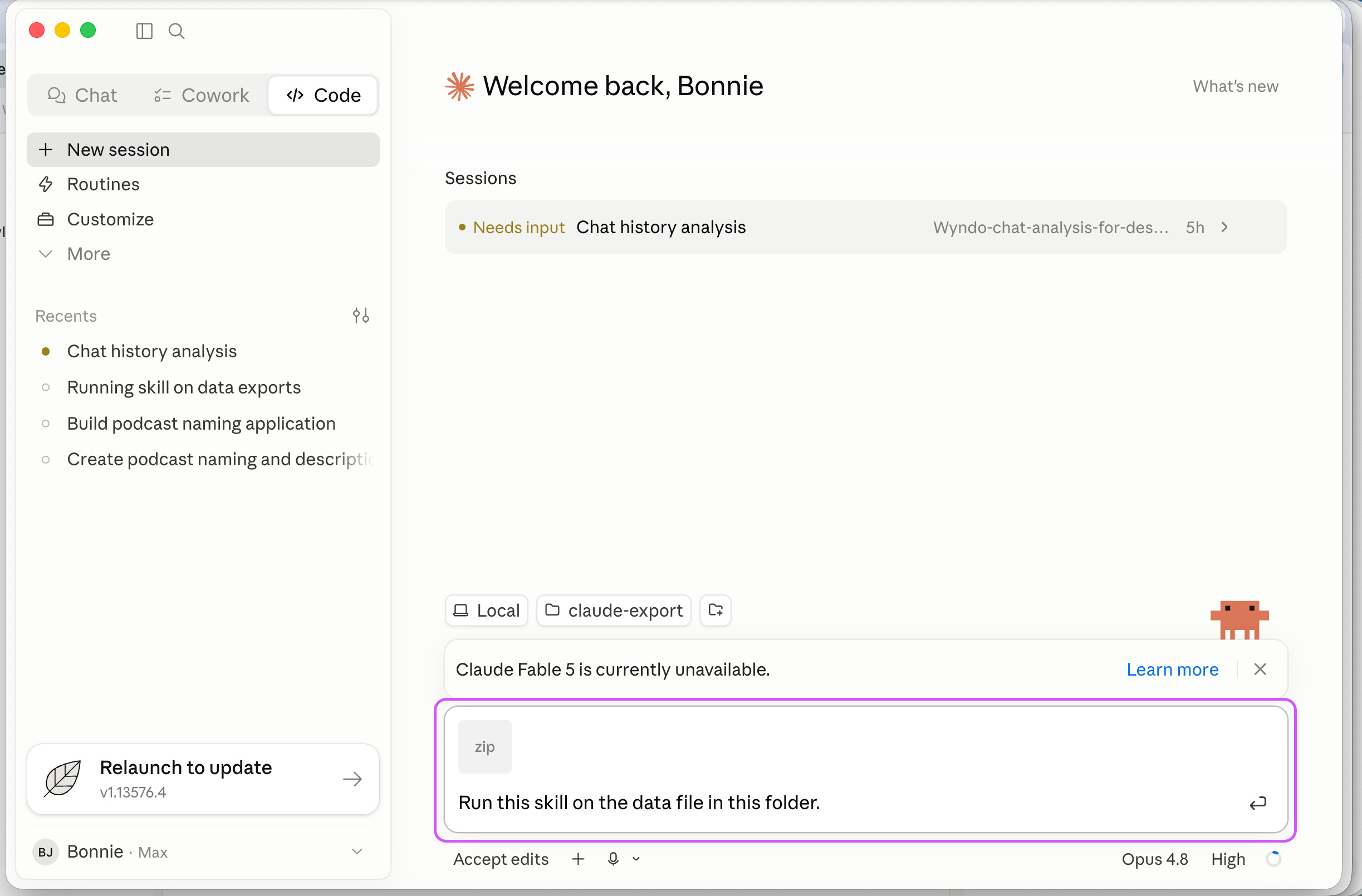
Press Enter. The AI Mirror for Claude skill begins to analyze your data.
Claude Code will periodically ask you for permission to execute various tasks.
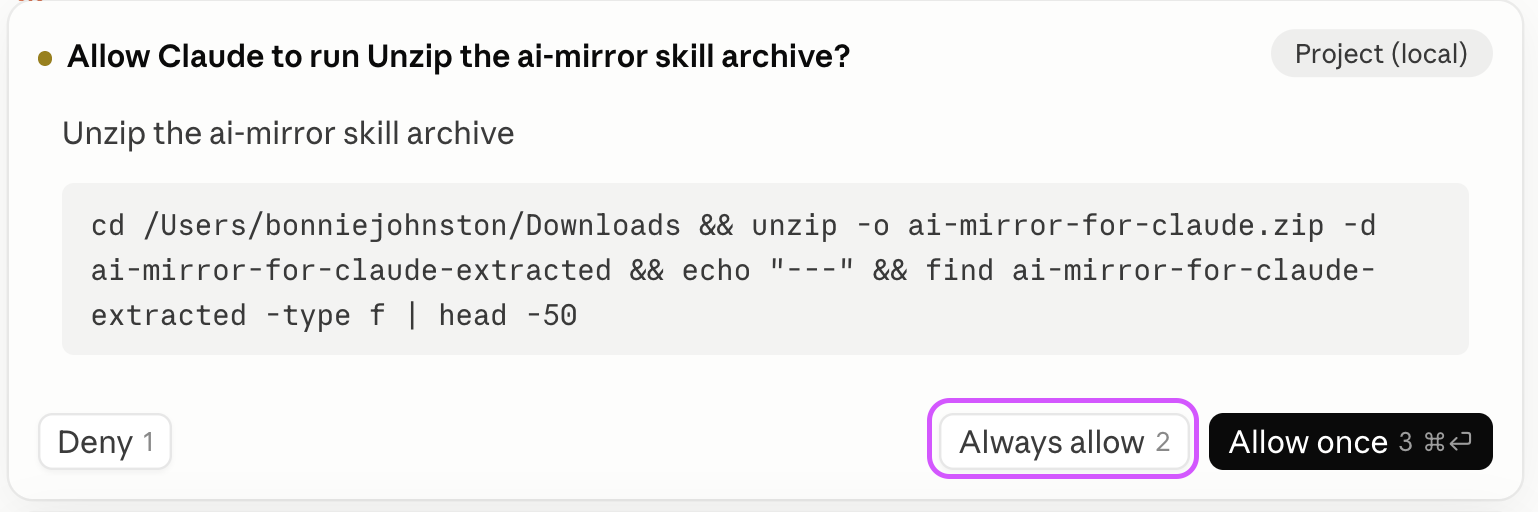
For tasks that must be executed once, it will ask you to Allow Once.
For tasks that must be executed multiple times, you will be given a choice to Allow Once or Always Allow. (To save on mouse clicks, choose Always Allow whenever possible.)
At some point in the process, Claude may also ask you to verify that you trust this workspace (which should be your claude-export folder):
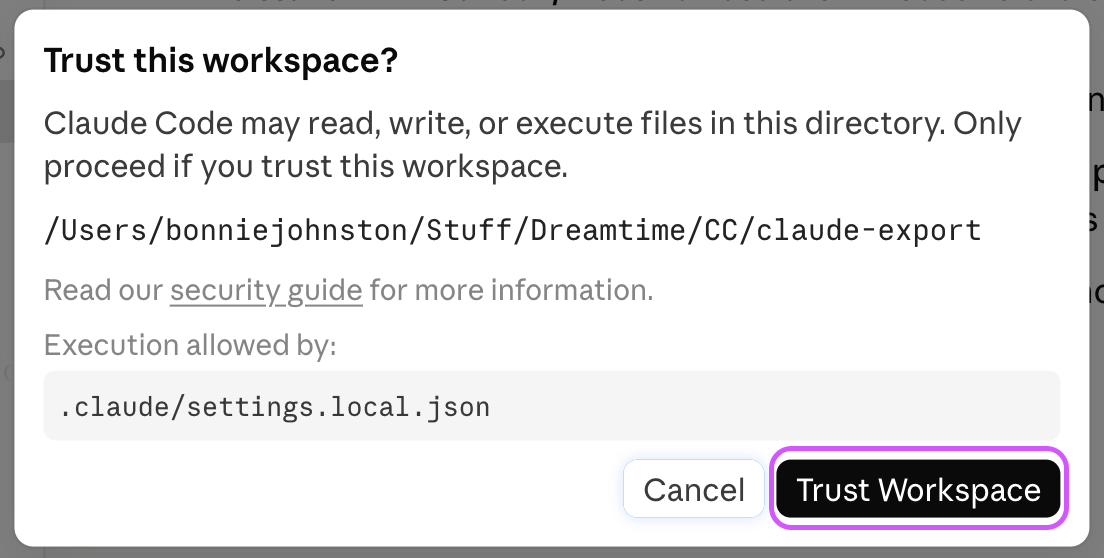
Clikc on Trust Workspace.
Once the AI Mirror skill has surveyed your chat history, it will ask 1-2 followup questions to be sure it’s interpreting your history correctly:
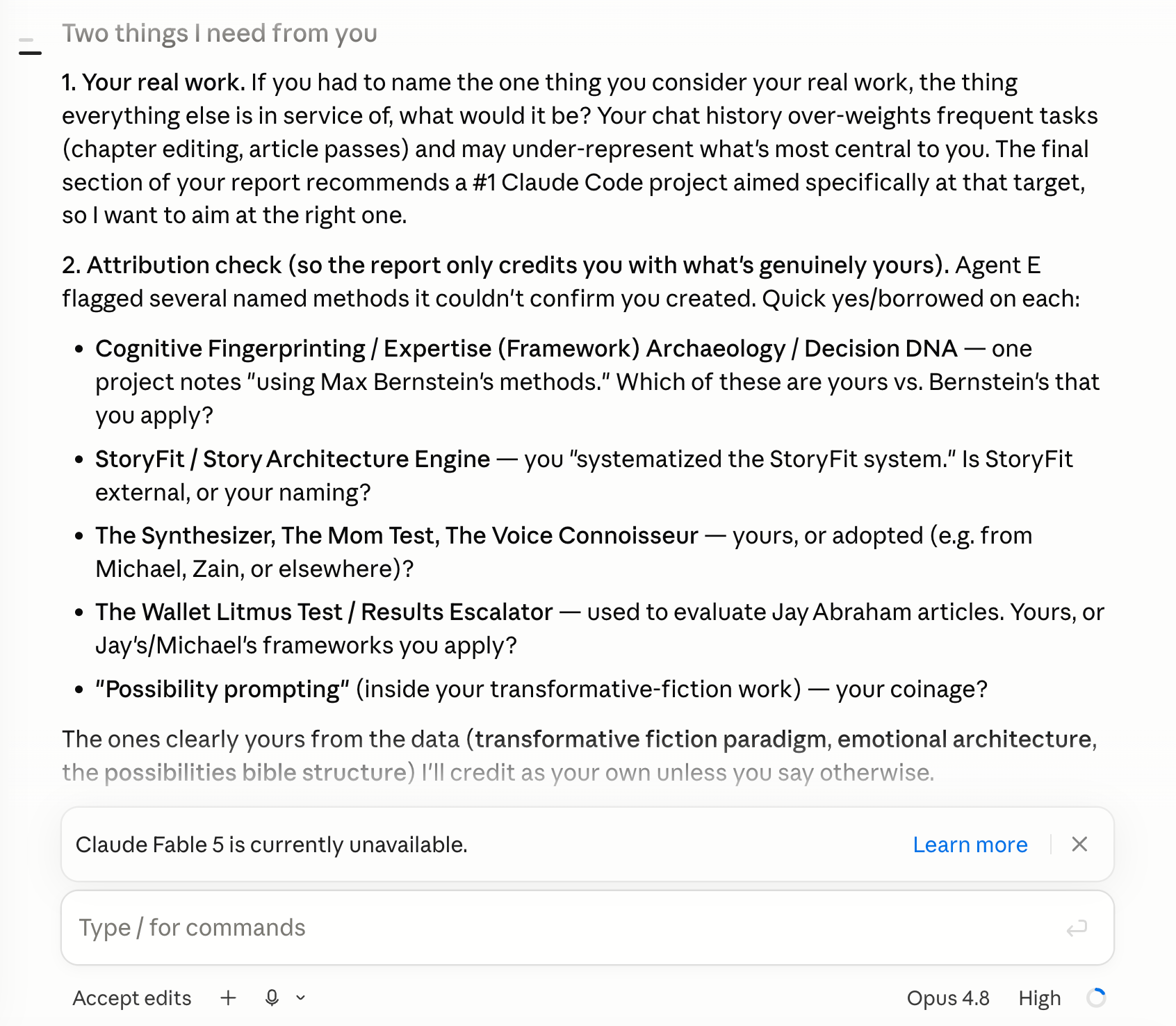
Depending on how large your chat history is, it may take up to 15 minutes or so to finish the analysis and create your report.
When the skill is complete, Claude will share a link to the .html dashboard as well as a summary of highlights:
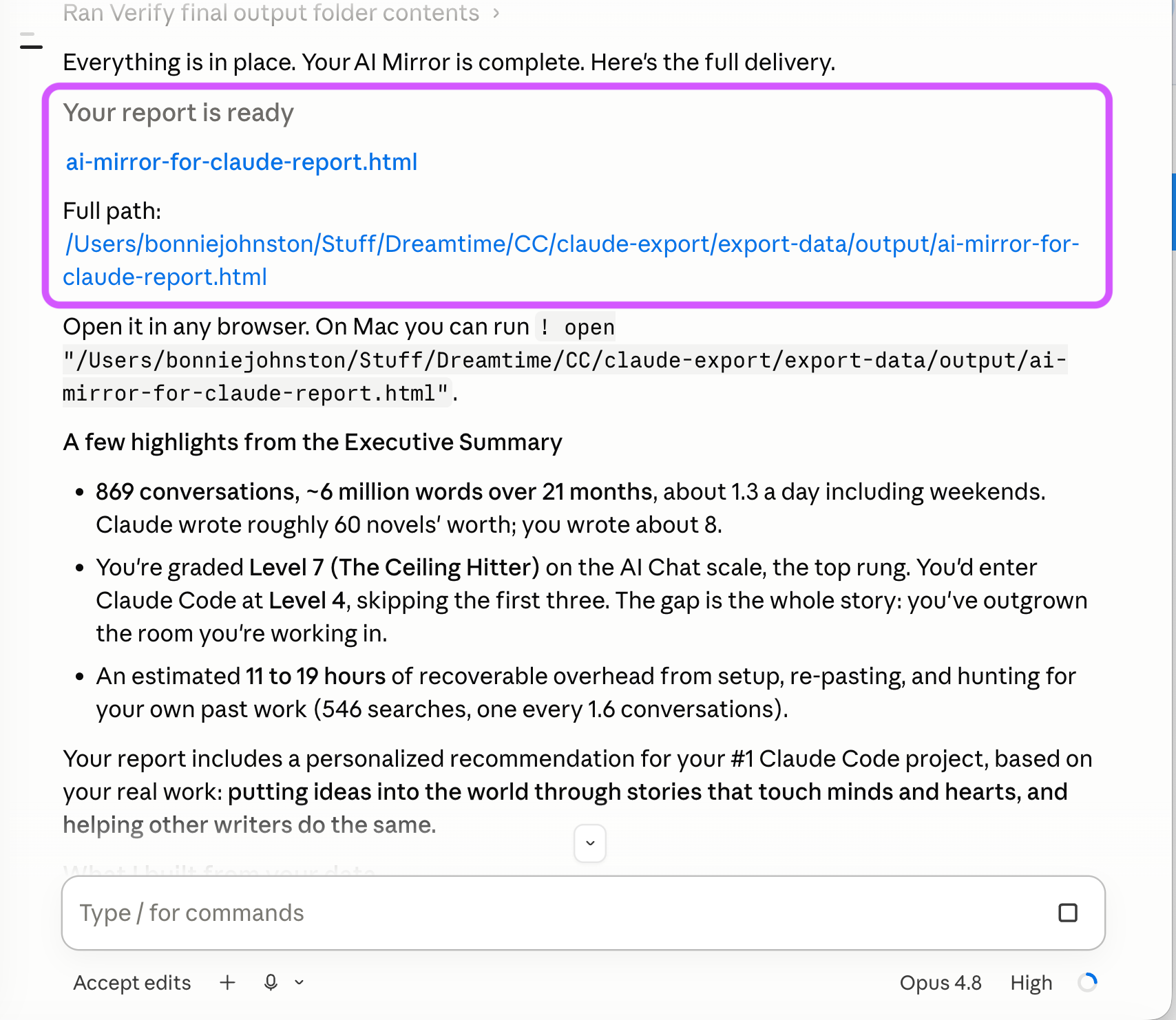
The report dashboard will open in a side window, which you can expand as needed.
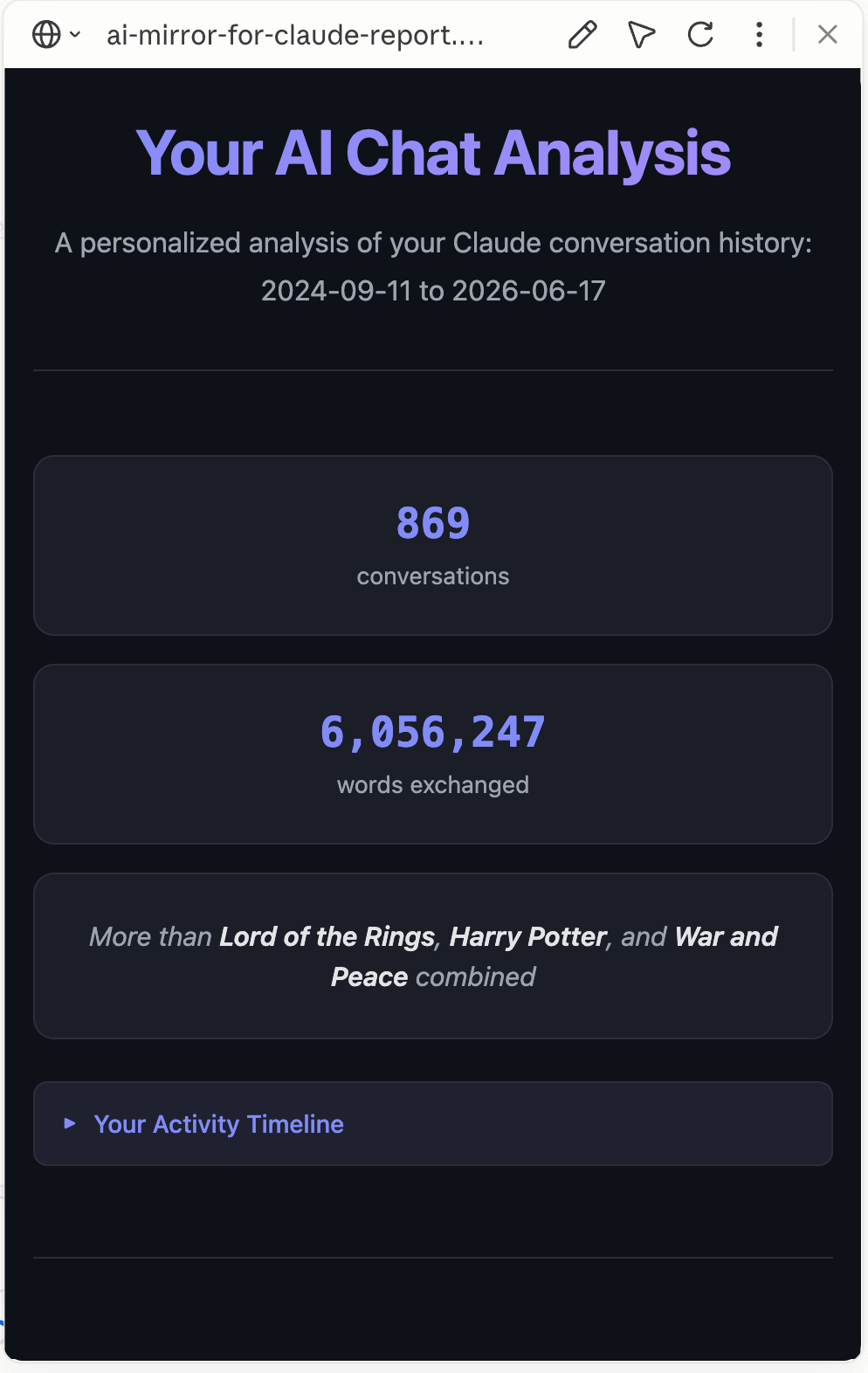
Note: Claude will also create a subfolder called output in your claude-export folder, where it will save both the .html file containing your dashboard, as well as each section of the dashboard in a markdown file, which you can view in any app that allows you to view markdown files (like Obsidian).
Appendix A: Installing the Claude Desktop App
If you haven’t installed the Claude Desktop app yet, here are PDFs containing instructions for installing it on both Mac and Windows computers.
Installation Guide for Mac:
Installation Guide for Windows: