



On October 2, Michael Simmons and I ran the first session of our year-long Mastermind: three hours, live on Zoom, building websites by chatting with ChatGPT.
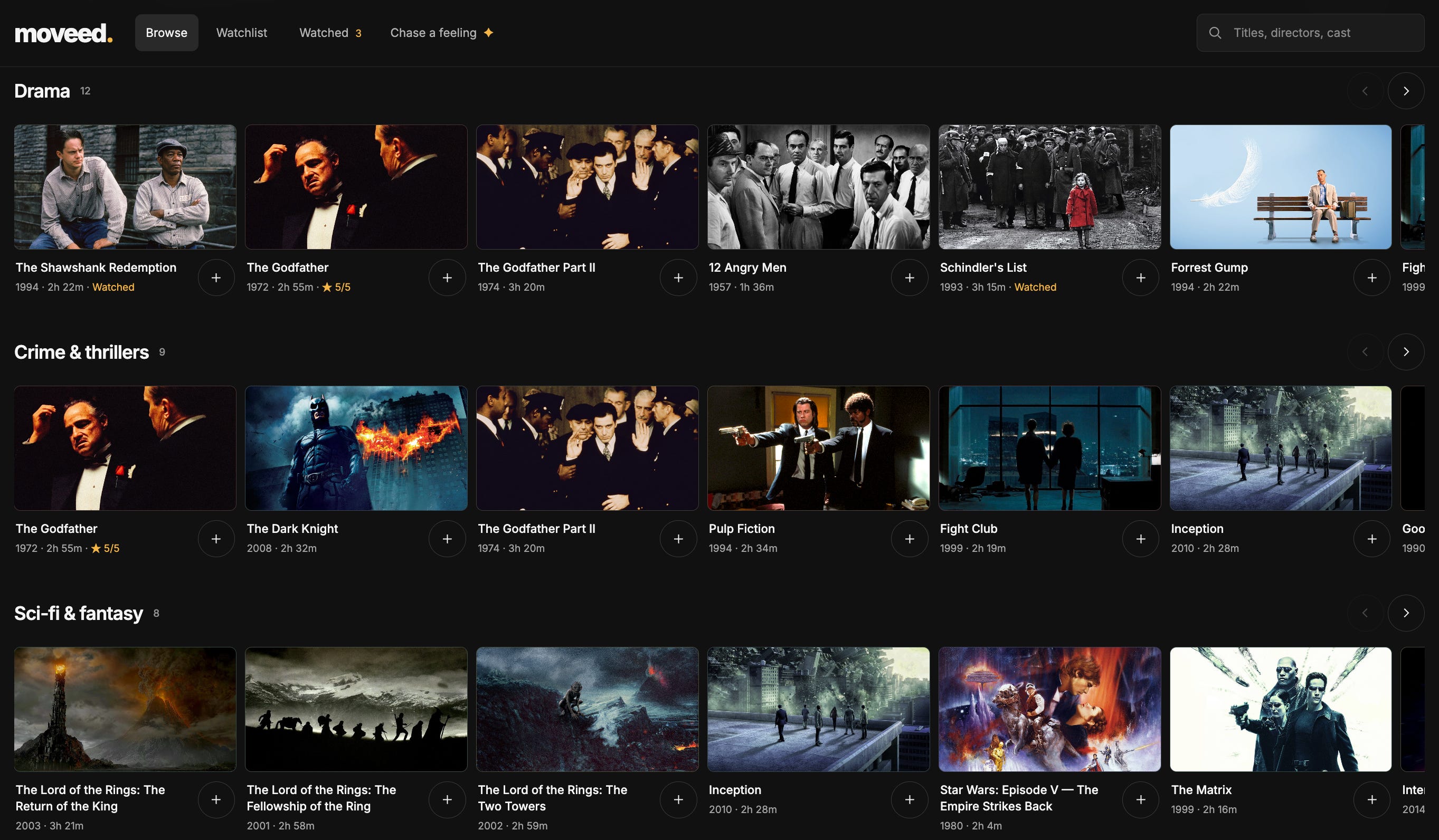
About half an hour in, I opened the movie database I’d built with ChatGPT Sites. It looks like Netflix, pulls its posters from IMDb, and suggests films for whatever mood you’re in. Michael asked how long it took. Around 20 to 30 minutes, with no long or advanced prompts.
“Just let that sink in, guys,” he told the room. A year earlier, he said, hiring a developer and a designer for a site like that would easily have cost tens of thousands of dollars.
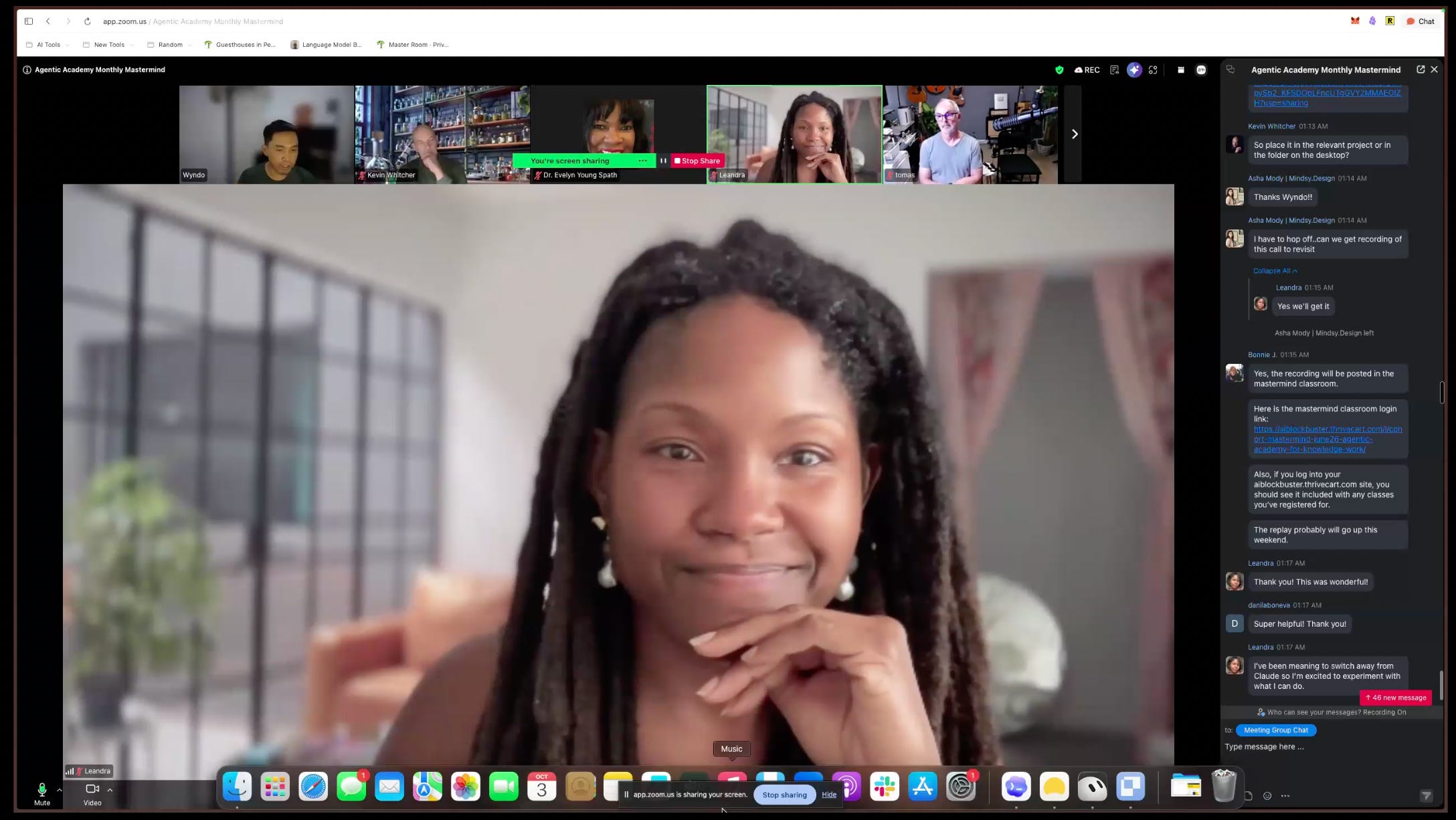
Then members started building their own. A little past the hour mark, the first finished sites showed up in our Zoom chat:
“While we’ve been talking, I just got it to make that. It went to my client’s website and took all the branding, and then I gave it a spreadsheet that I would normally do a business valuation from. [...] I’ve been putting off making this calculator for them for quite a long time, like months. [...] That would probably be, for me, two days work. [...] Maybe I don’t need to procrastinate.”
Julia Chanteray, The Joy of Business
“I built one simple site, which combines the tasks website we did with the Atomic Habits. And that was extremely easy to do, right? With ChatGPT, I found it so easy to ask also for design changes and the way the site should appear. Super helpful! Thank you!”
Below, I'll share 7 things you can make your site do just by asking, the skill behind my 30-minute site, 10 sites you could build, and some setup fixes that helped people get unstuck during the session.
If you missed the session, you can still get it. Join the Mastermind and you get the full recording and the site-builder skill right away, plus a live session every month. We’ll share the full details tomorrow.
7 Things You Can Make Your Site Do, Just by Asking
Sites lets you build a full website by chatting with ChatGPT and publish it on ChatGPT’s hosting, without writing a single line of code. You never have to see or understand the code behind it—as long as the site works, it just feels like it appears for you.
I know some of you might already be using Claude’s Artifacts. While it’s great for lightweight pages, for a full site that other people can sign into and use, Sites is the best tool we’ve found so far. The truth is we don’t stay loyal to one company. Each month, we teach whichever tool does the job best, and we also make sure what we teach delivers outsized results for the time you put in.
We demoed each of these on screen, and the recording walks through every one step by step:
1. Change anything by pointing at it
Click any part of your site, leave a note like “make this button red,” and send all your notes at once. No need to describe where things are.
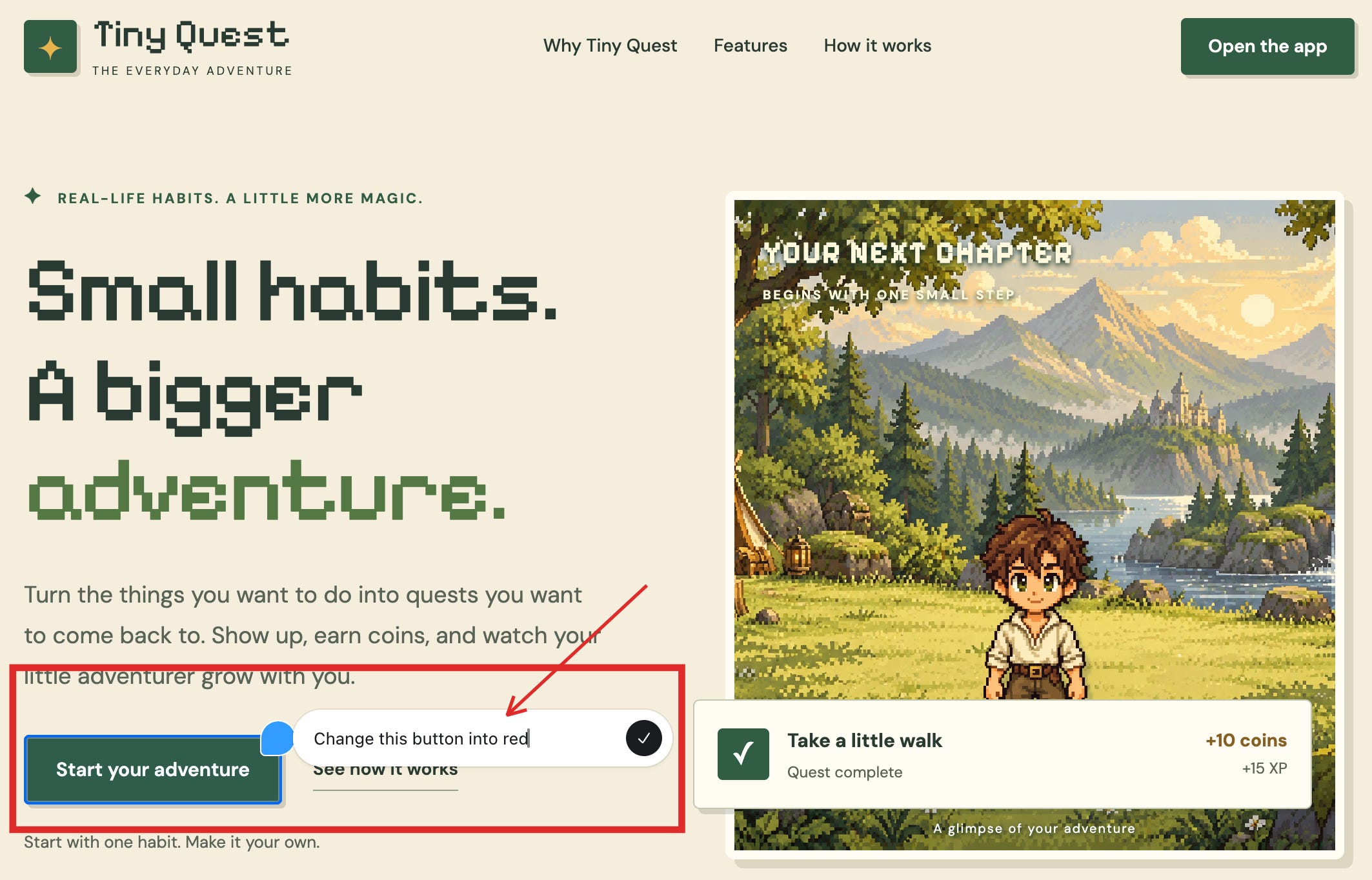
What you can do with it: review your site the way you'd mark up a document. Change a color, swap an image, or rewrite a heading in a few clicks, without knowing any design terms.
2. Give your site a database
Ask ChatGPT for a database and it sets one up, so your site can remember who signed up, what they bookmarked, or how far they’ve gotten. Here’s an example of a to‑do list app I built to store a history of all the tasks I’ve completed over time.
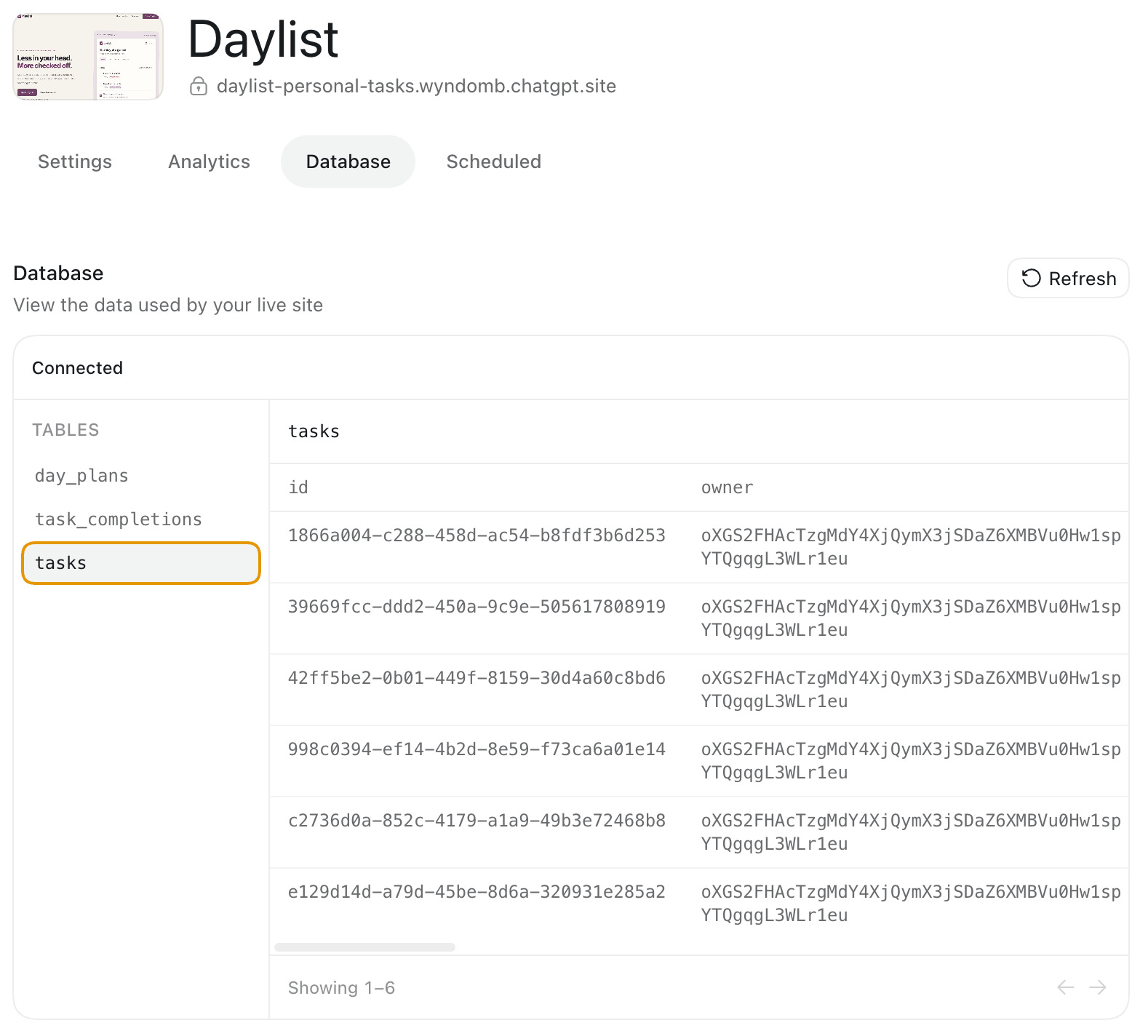
This enables me to track my productivity over time, so I can see where I need to improve.
What you can do with it: keep a movie list with your ratings that friends can browse, like my movie database. Run a habit tracker that remembers your streak. Give each client a page that saves their progress between visits.
3. Decide who can see your site, and how people sign up
You can keep a site private, share it with specific people, or make it public. You can also easily add an email form to collect your audience’s addresses and grow your lead magnet.
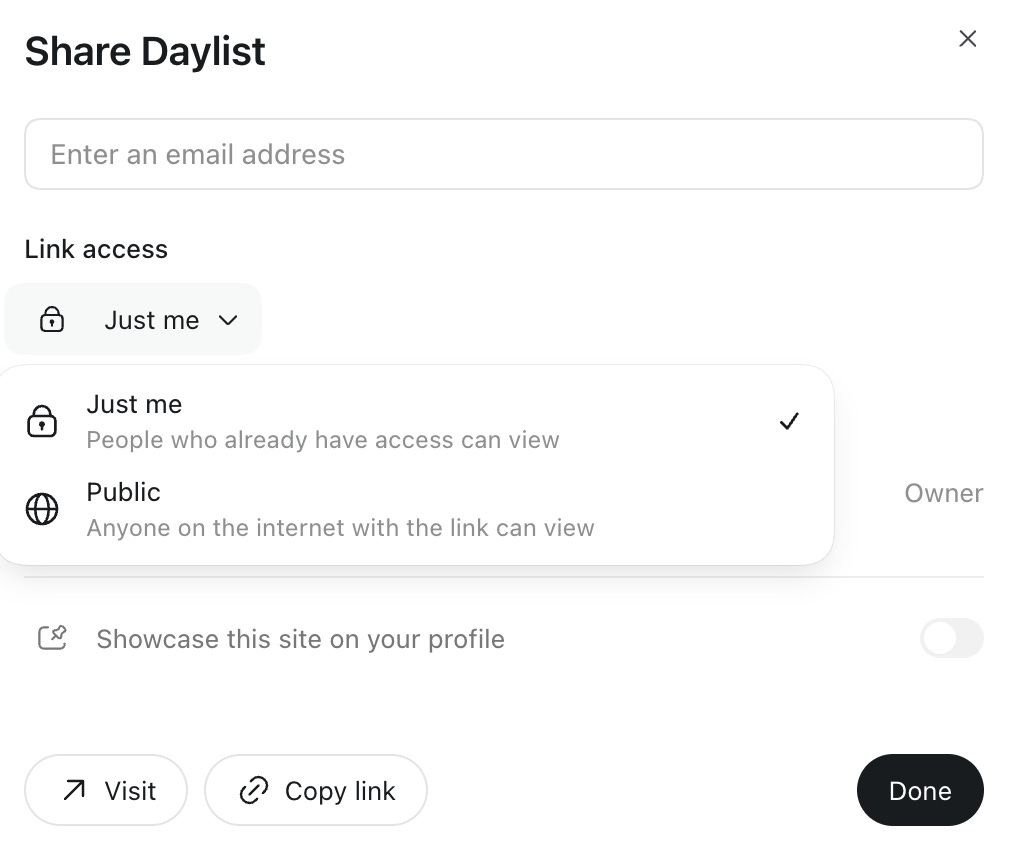
What you can do with it: keep a client portal private so only that client sees their work. Open a resource to your readers and collect emails from the people who sign up. Build a members-only area for people who've paid.
4. Show your numbers in one place, updated every morning.
My newsletter dashboard pulls from Substack, Google Analytics and Search Console. Normally that means pasting data into a Google Sheet by hand. Now I just open the page.
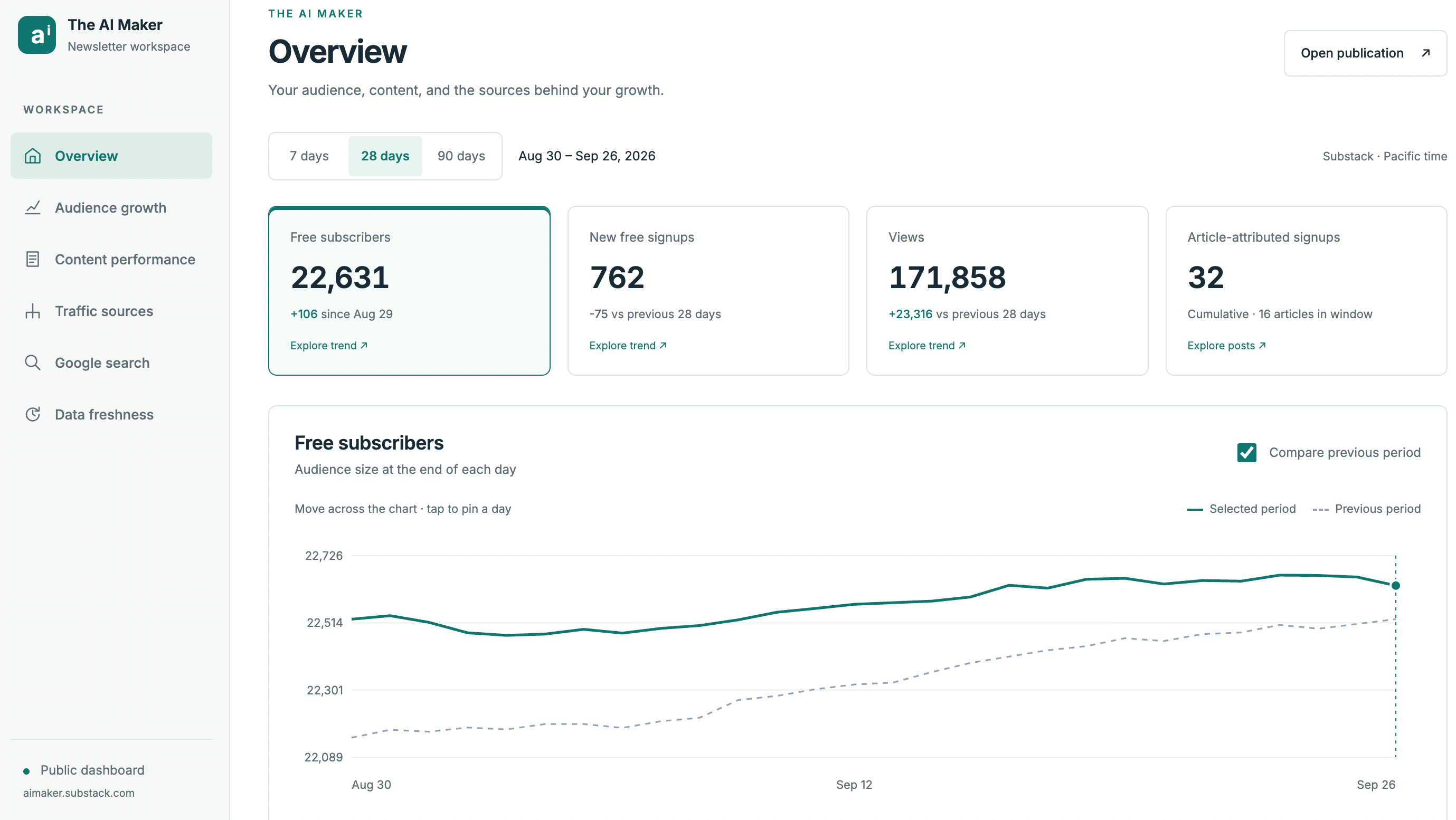
What you can do with it: connect the tools you already use, like Google Drive, Gmail, Notion, Stripe or ElevenLabs. See your sales, subscribers or traffic on one page. Have ElevenLabs read your latest newsletter out loud. Pull documents from your Drive into a client page.
5. Let ChatGPT check things for you on a schedule
Every hour, day or week, ChatGPT runs on its own, like refreshing that dashboard or scanning the news for things that match your goals. The $20 plan gives you five of these.
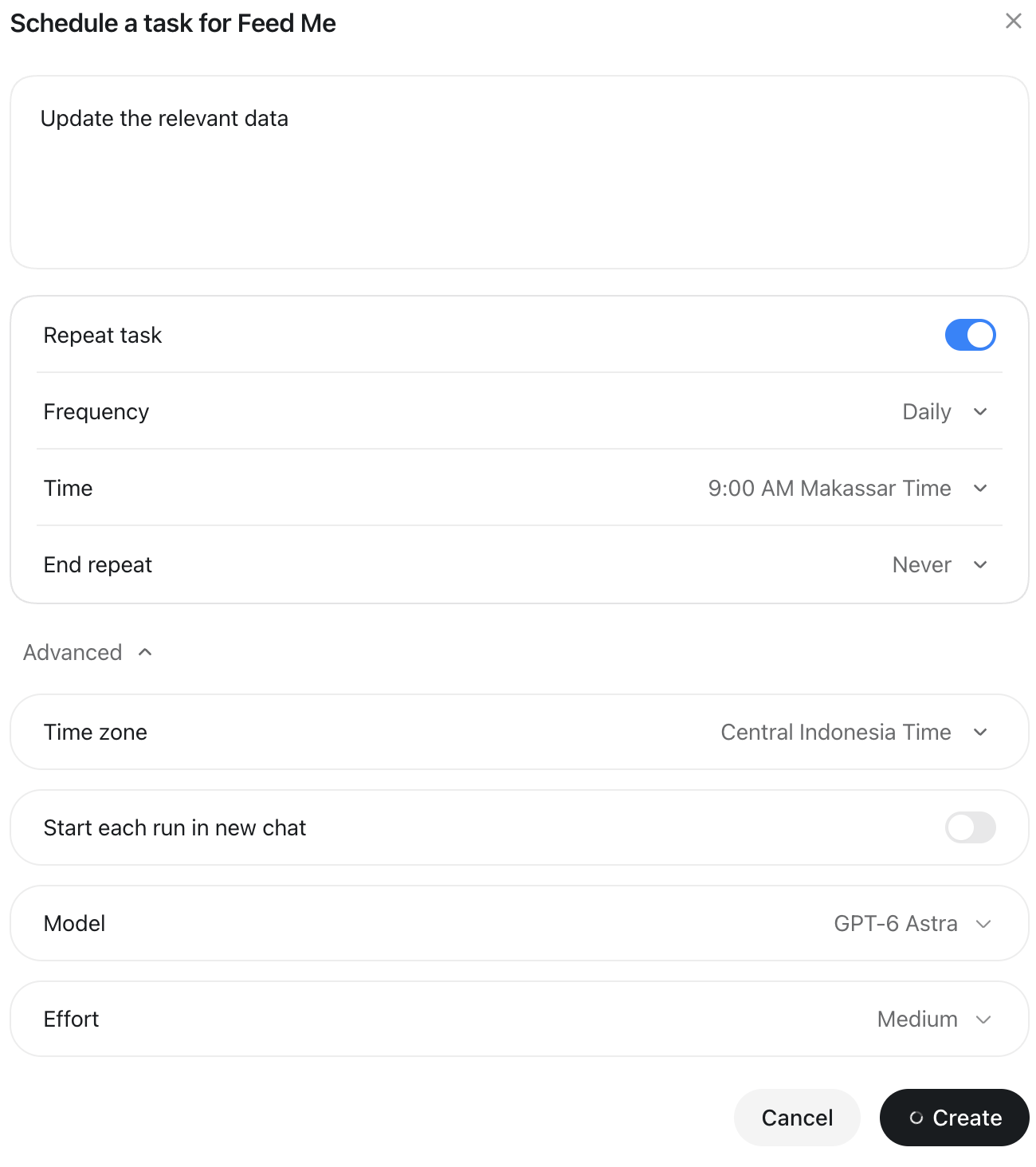
What you can do with it: wake up to a fresh feed of the newsletters and channels you follow, like my FeedMe. Get a heads-up when a tool you pay for runs a discount. Have new research on the topic you write about collected for you every week
6. Put your site on your own address
Use a domain you already own, like yourname.com. ChatGPT can even walk through the setup with your domain provider for you.
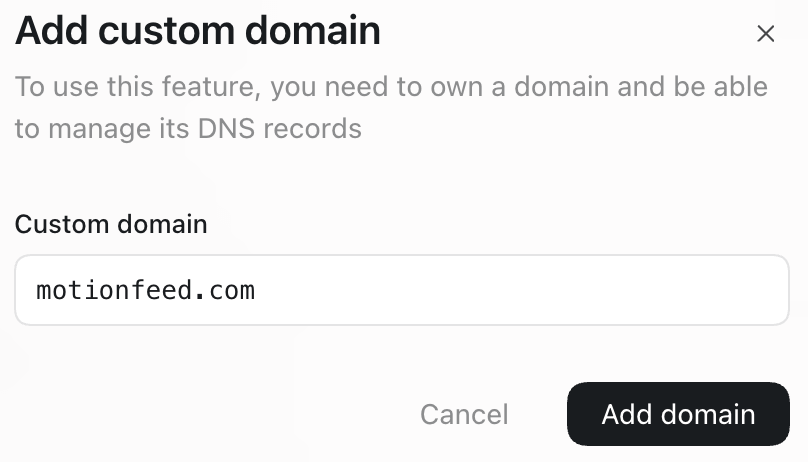
What you can do with it: send clients and readers to an address that carries your name, so the site feels like part of your business.
7. Add AI your visitors can use
Your ChatGPT subscription only covers you. If you want visitors to chat with AI on your site, like the coach in my to-do app, you buy a small amount of separate credit from OpenAI and connect it. I started with $5.
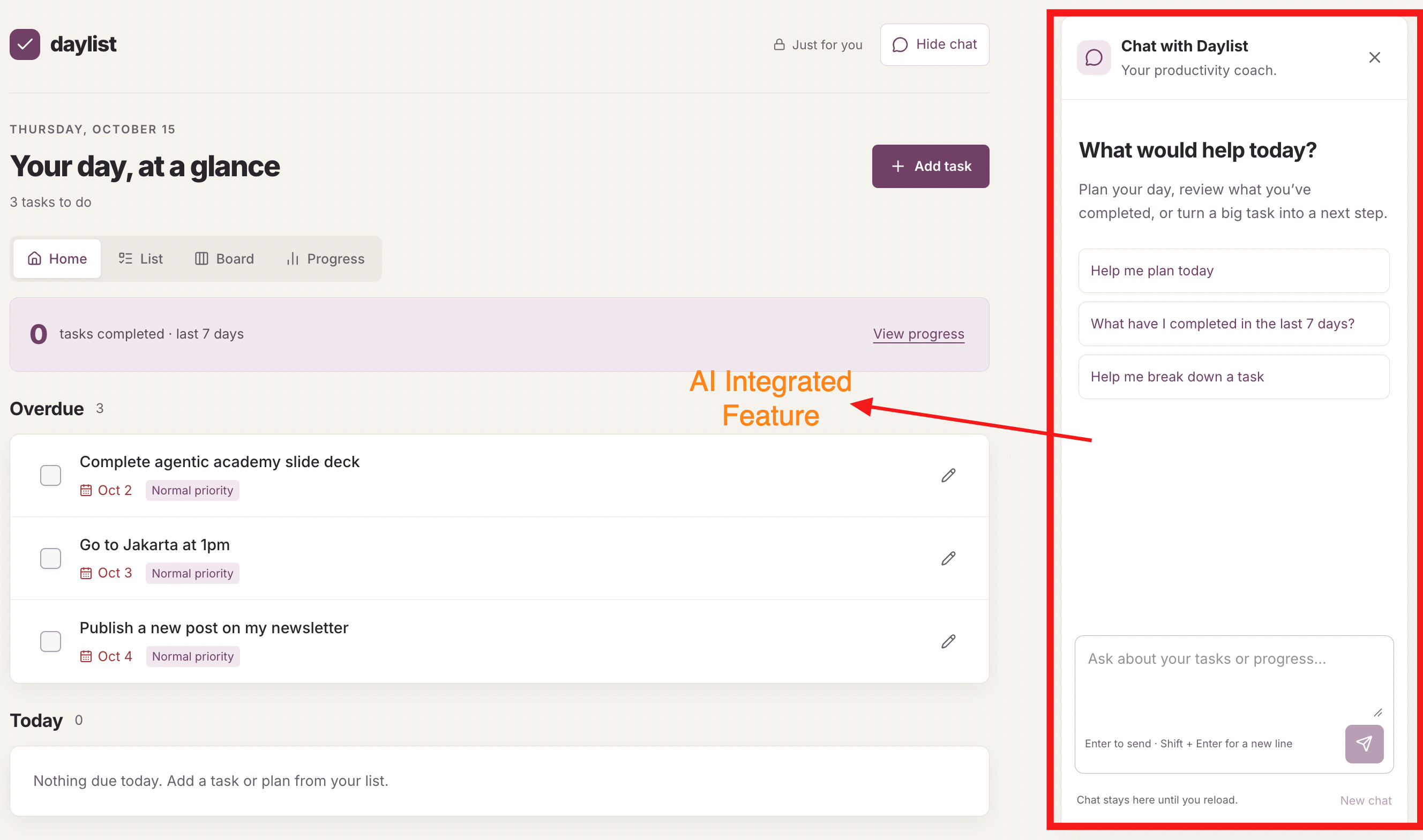
What you can do with it: add a coach that plans your day from your to-do list, like mine. Suggest films for someone's mood, like my movie database does. Let your best clients ask questions about your material and get answers drawn from it.
The skill behind my 30-minute Netflix clone site
If you open ChatGPT and type “build me a website,” ChatGPT has to guess everything you didn’t say: what the site is for, how each feature should work, and what it should look like. You’ll get a site, but it’s built on ChatGPT’s guesses, so it rarely looks or works the way you pictured it.
The site-builder skill replaces those guesses with your answers. It’s what I used for my movie database, and every member got it during the session. A skill is a saved set of instructions ChatGPT follows step by step. This one interviews you before anything gets built, the way a good designer would before taking on a client: what the site is for, who it’s for, which sites you like the look of and why. From that conversation, it writes two short documents:
A site plan: what the site does, feature by feature.
A design guide: how it should look, down to colors and fonts, based on the sites you showed it.
ChatGPT then builds from those two documents, so your first version already follows your taste and works the way you described. The rest is a few rounds of changes.
That’s what makes the sites people usually hire for feel within reach. Say you’re a coach who emails clients their notes as PDFs. You could give each client their own portal instead, where they sign in and see only their notes and progress. The same goes for a course platform, an author website, or a small AI tool people pay to use.
In the screenshot below, I asked the skill to help me build a movie database modeled on the Netflix UI/UX. It then asked a few questions to better understand what I actually wanted.
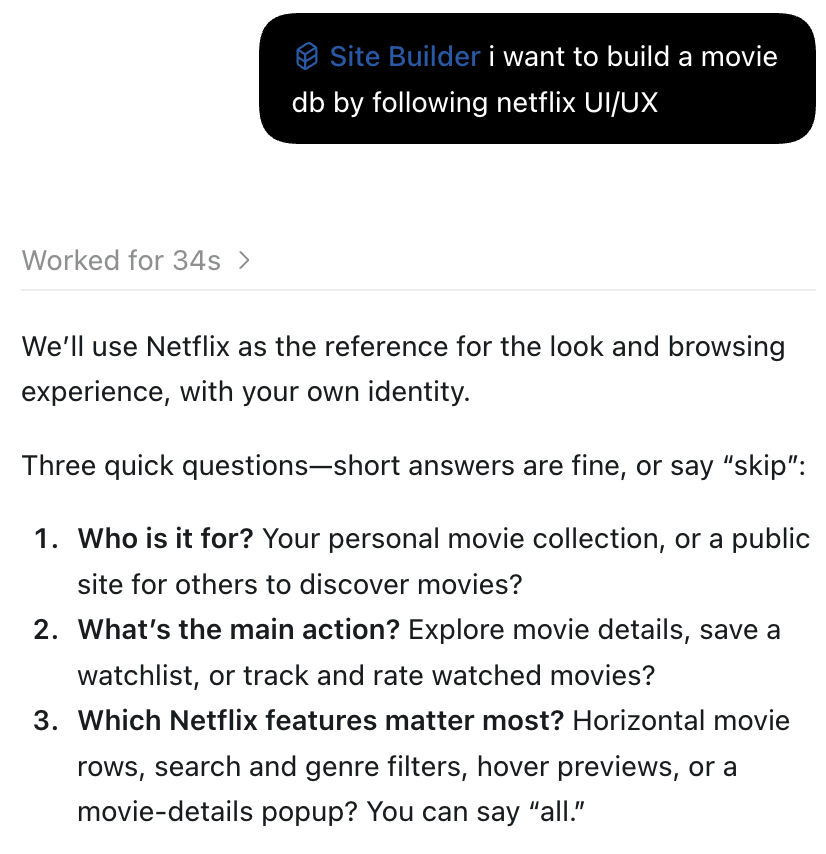
Then I ran a bunch of rounds of chats with ChatGPT before we finally settled on some features and designs we wanted to build.
When you’re building your first site, there are two pieces of advice from the session that you can apply:
Mine: put most of your time into the skill’s interview, show it sites you love, let it challenge your idea, and read the plan before it builds.
Michael’s: keep your first version small. When he started with a really detailed plan for a big site, he had so many changes to make at once that it got overwhelming.
The skill is yours the day you join.
10 sites you could build
These came out of the session, from sites Michael and I built or ideas members brought to the call. The skill’s interview works for any of them:
A client portal where each client signs in and sees only their own work.
A personal collection site for things you love, like your movie database with ratings friends can browse.
A lead magnet that lets people read a few pages, then asks for their email. Michael’s Think With MODELS, a site about better thinking, asks after five pages.
A members-only area that opens up when someone pays, through Stripe.
A calculator that turns your method into a tool clients can use.
A simple landing page as a perk for a group you run. One member is planning one for her farmers association.
A personal reading feed of the newsletters, YouTube channels and X accounts you follow, like my FeedMe.
A habit tracker that works like a game. In my TinyQuest, you earn coins for your character when you keep a habit and lose health when you skip one.
A quiz or self-assessment that tells visitors where they stand, then points them to your best content for their result.
A resource library of your favorite tools, templates or books, with your notes on each one.
Stuck on setup? We fixed it live
If you don’t think of yourself as technical, this is the part to read. Michael said it on the call: “The setup is always the hardest thing of all the things.” So whenever someone got stuck, we fixed it on screen so everyone could follow:
“My screen doesn’t look like yours.”
If you’re on Windows, the ChatGPT app looks a little different. One member shared his screen and we found the right buttons together. He also added a tip of his own: if your project folder syncs through Dropbox, set the files to be available offline.
“I made a project, but I can’t get back into it.”
To build a Site, you need to create a new project folder, but one member couldn’t get back in, so we told him to hover over the project name in the sidebar; the button to start a new chat only shows up then.
“Will it look at everything on my computer?”
By default, ChatGPT stays inside the project folder you picked and only looks elsewhere if you ask. That’s why we recommend giving every site its own folder.
“I can’t find the full-access option.”
We recommend giving ChatGPT full access to edit and write files in your project folder. The option is easy to miss: it’s a toggle in Settings.
“My computer won’t let me create the skills folder.”
Some computers block folder names that start with a dot, which is where skills normally live. The workaround: upload the skill folder into the chat and ask ChatGPT to install the skill. If you’d like the skill in every project, add “at the user level” to your request.
“This permission message looks strange.”
Michael’s advice: before you say yes, ask ChatGPT what the message means and whether it’s safe.
Every fix is in the recording.
Next up: video, on October 23
Near the end of the session, Michael played a short video he’d made from clips he’d saved and forgotten about, using ElevenLabs. It came from one simple prompt and two rounds of changes.
Right away, members started talking about the clips, recordings and voice notes they’d love to turn into videos.
So that’s our next session: Friday, October 23, 11am to 2pm ET, making videos with Claude from material you already have, like a coaching call, a class recording or a voice note. Full details tomorrow.
If you’re already a Mastermind member, see you on the 23rd. If you’re not, you can join now and start with the Sites recording and skill this week.
Best,
Wyndo